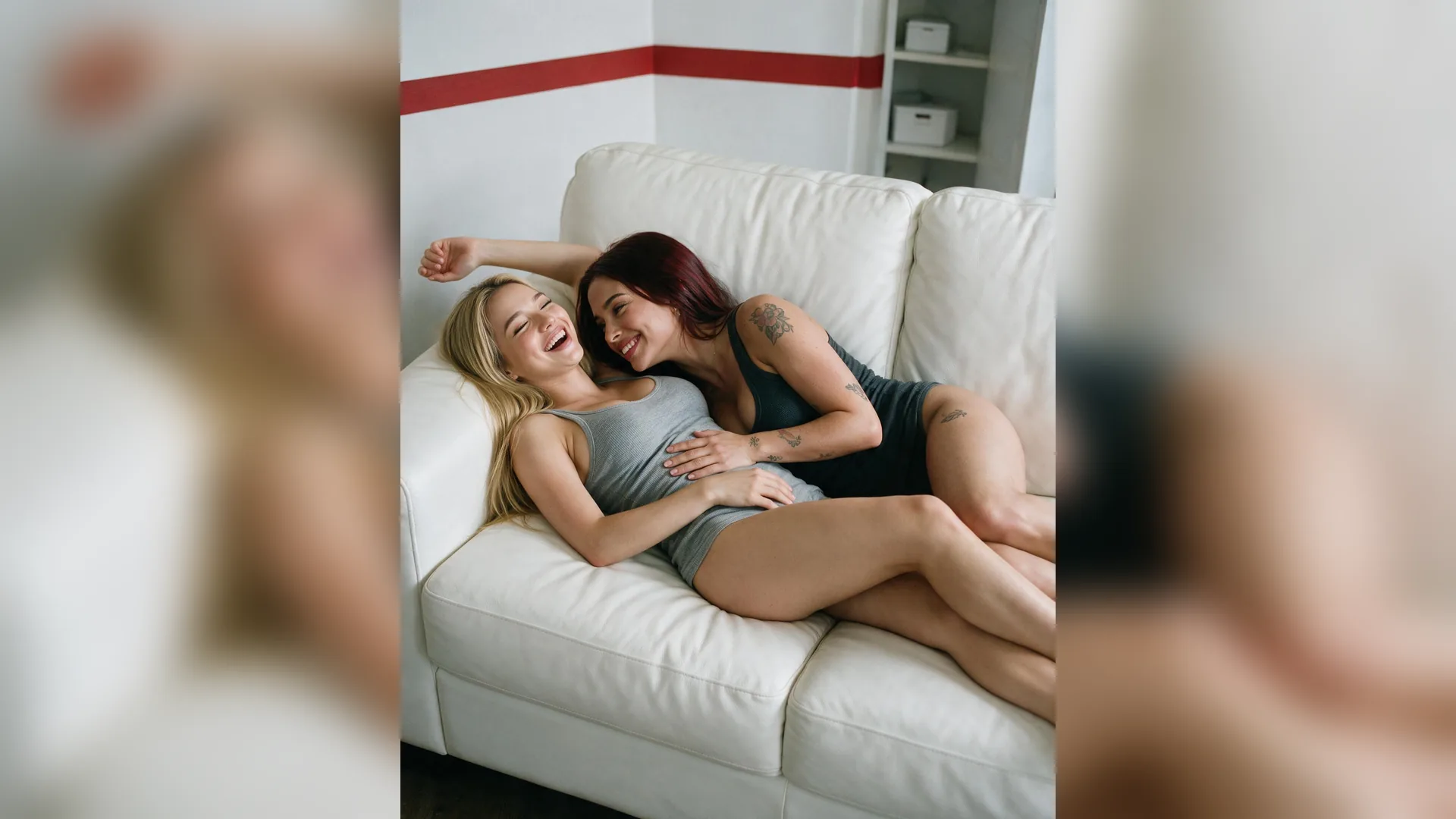
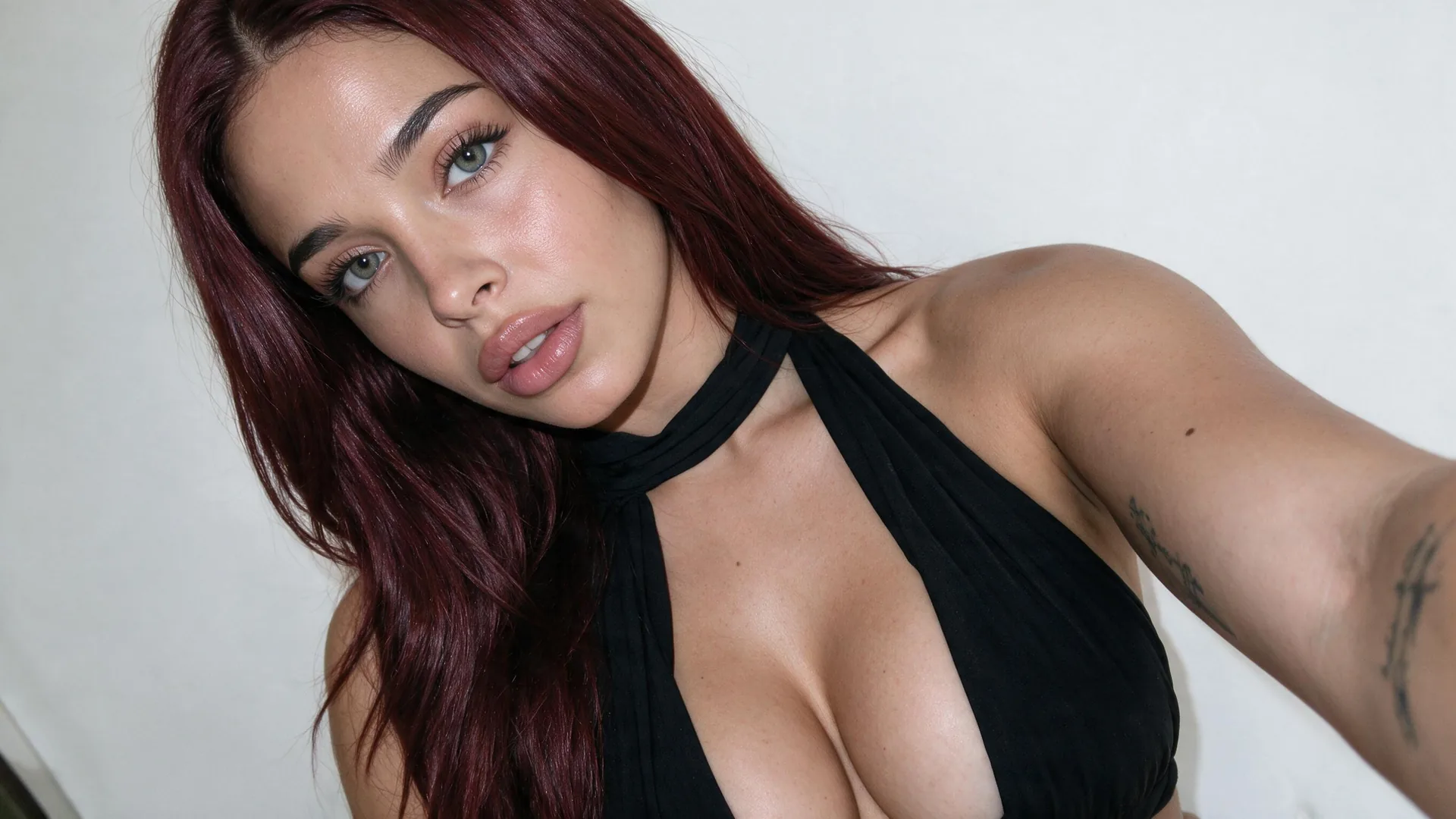
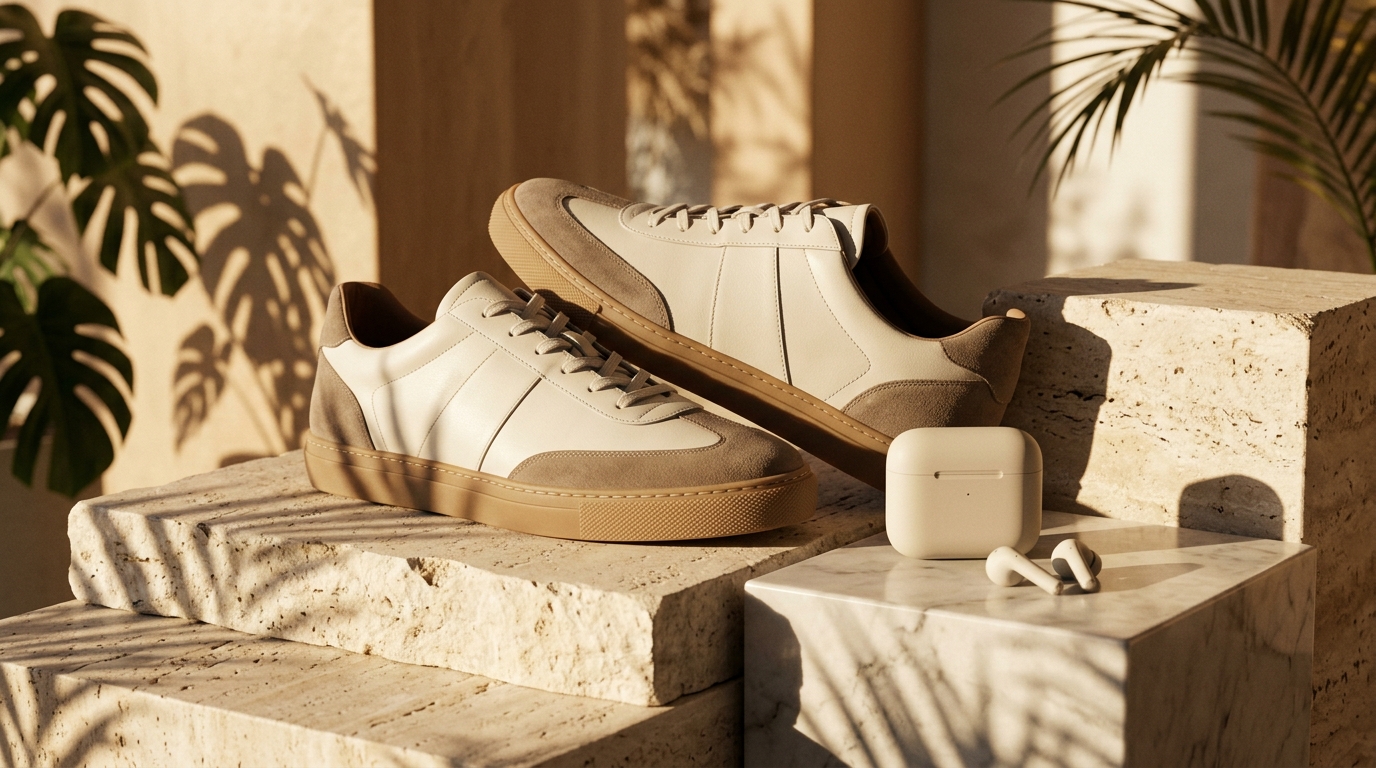
Match Camera Elevation
PerspectivePair subjects and backdrops shot at similar eye-level or tabletop angles for natural ground contact.
Combine two images with AI, merge products into realistic scenes, or blend two portraits together with matched lighting and natural perspective inside Viralkey Agent. Powered by Viralkey Agent · Explore AI Describe Image · AI Selfie Generator · Banner Maker
Describe how the attached images should combine
Manual masking and color-matching in desktop editors slows down ecommerce launches and creator collabs. Choose your fusion scenario, blend intensity, and lighting match below—then attach two or more photos in the Reference slot so Viralkey Agent merges them into one cohesive frame. Run tailored briefs inside Viralkey Agent or explore model-based creation in the AI Image Generator · Related workflows: AI Describe Image · AI Selfie Generator · Banner Maker
Combine two images with AI, merge products into realistic scenes, or blend two portraits together with matched lighting and natural perspective inside Viralkey Agent.
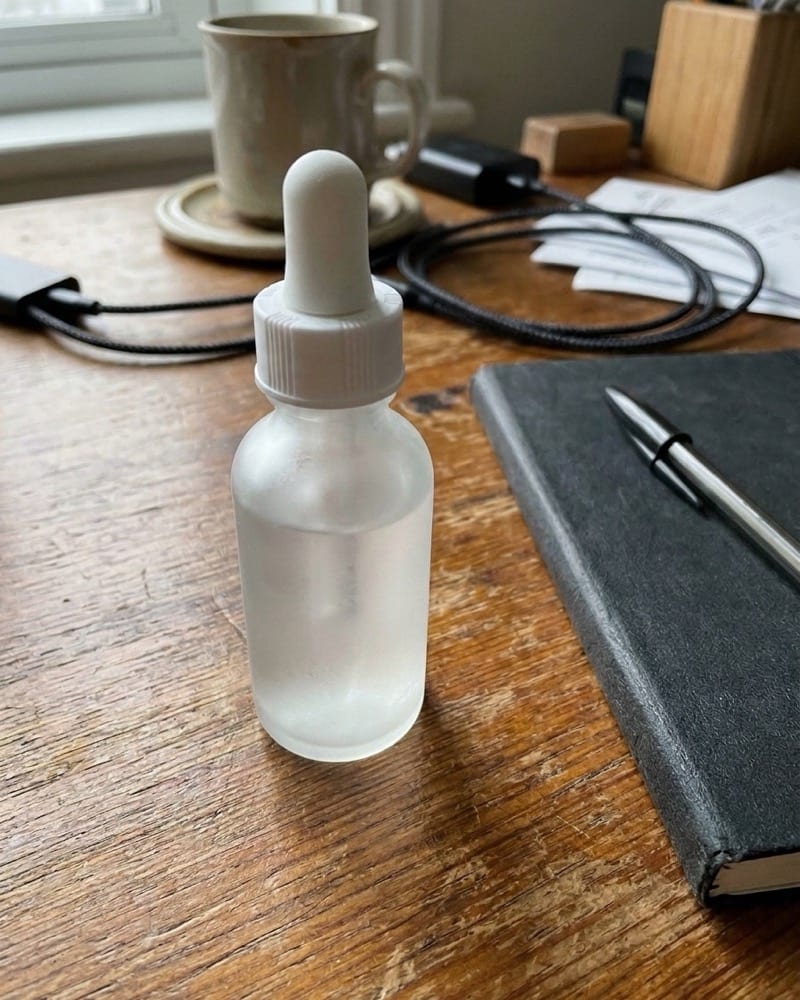
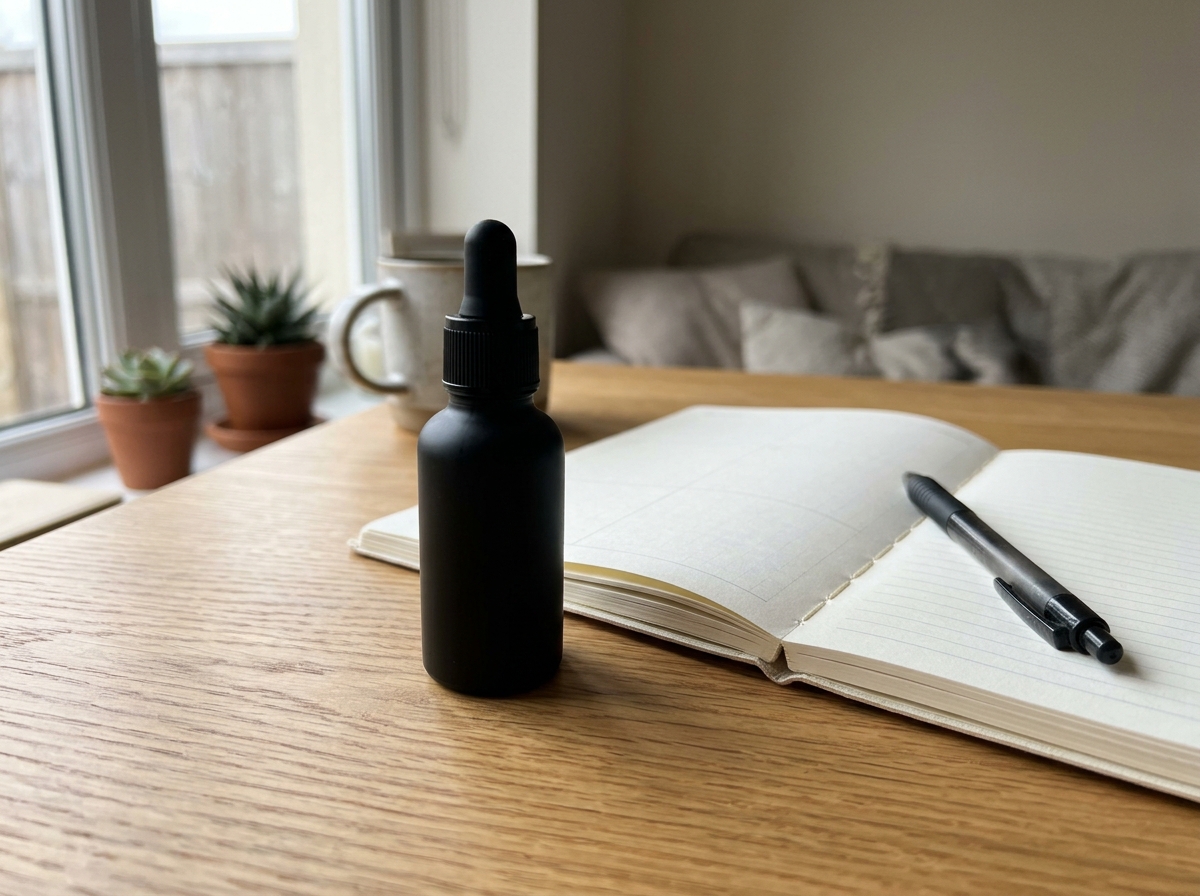
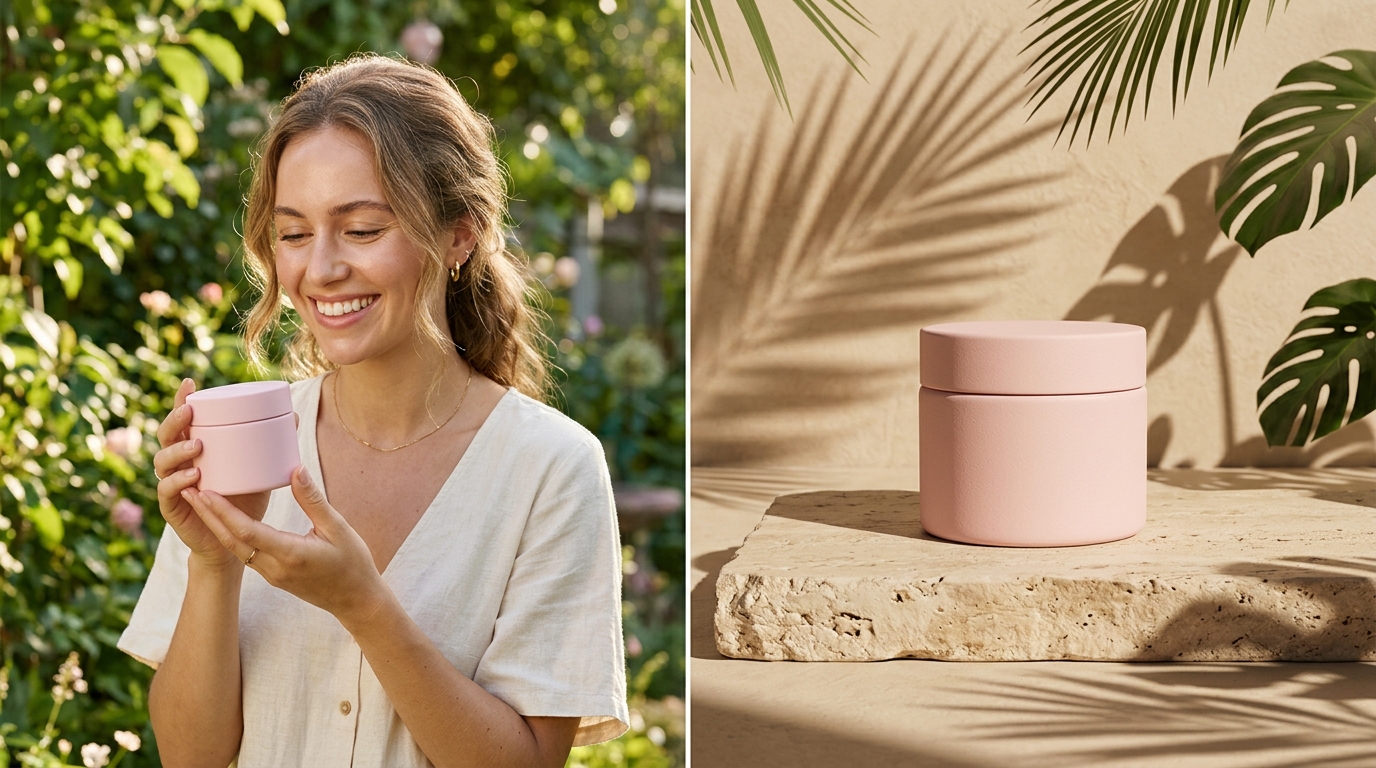
Drop a product shot and a background location into the Reference slot to place items naturally onto surfaces with believable contact shadows.
Generate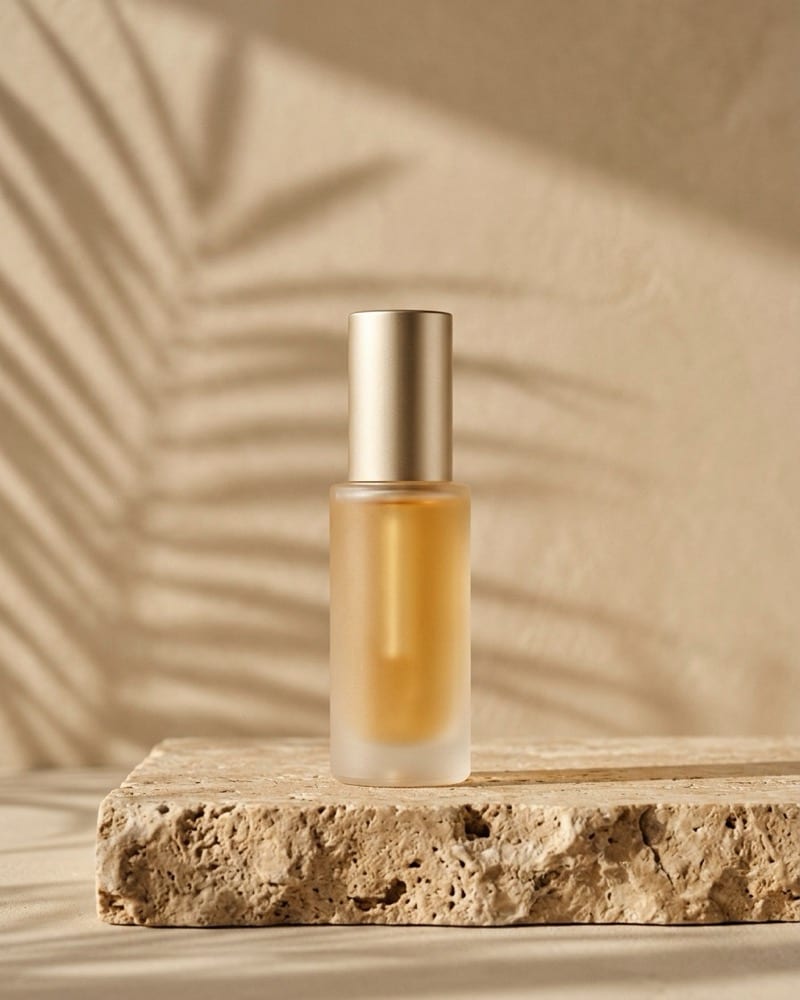
Instructs Agent to harmonize highlights, shadows, and lens grain so merged subjects never look pasted onto an unrelated backdrop.
Generate
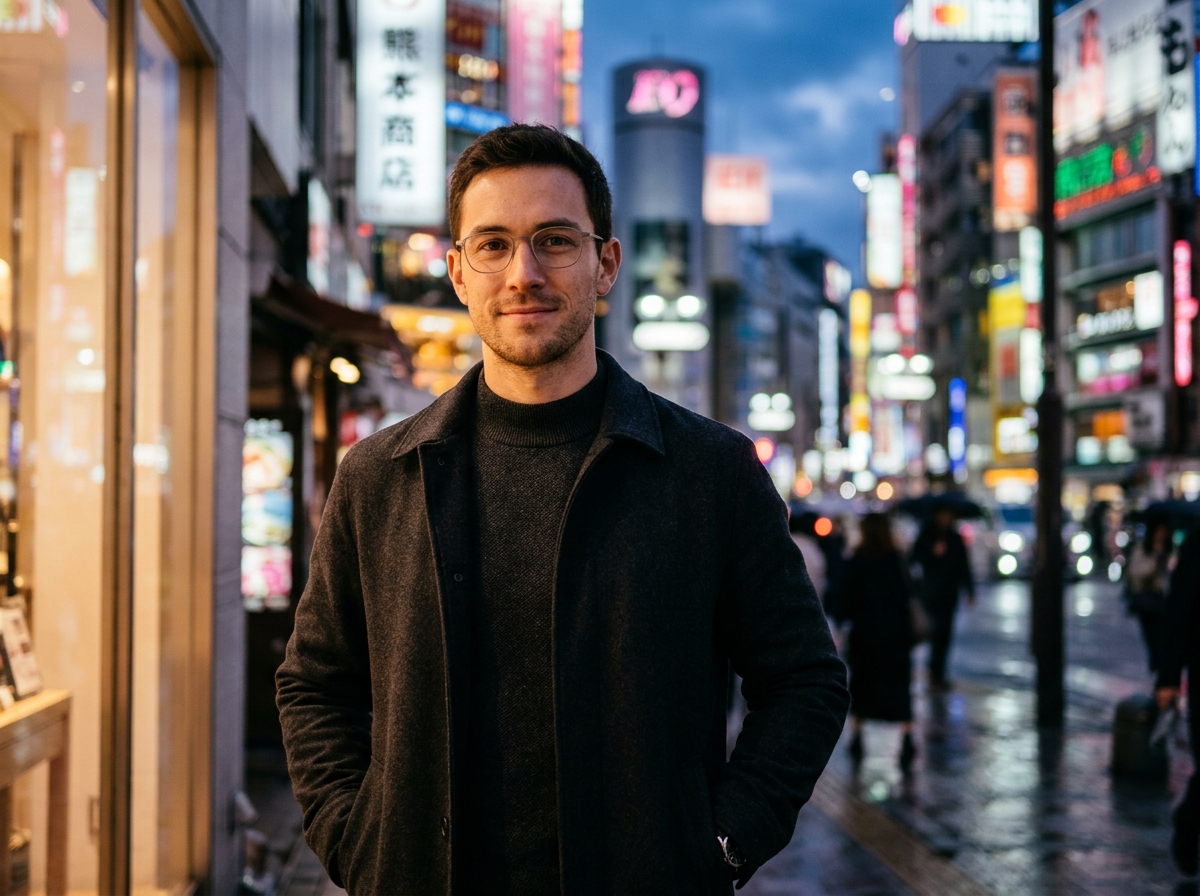
Go beyond rigid cutouts: transfer garments onto a model, fuse two artistic palettes, or compose clean dual-subject frames.
GenerateUpload your subject photo and target background, outfit, or style image into the Reference upload slot or drag them straight into the composer.
Choose Product in Scene, Outfit / Look Transfer, Style Mashup, or Dual Subject Composite, then set your blend balance and lighting lock.
Click Generate to send your attached images and fusion brief directly into Agent and refine shadows or framing in chat.
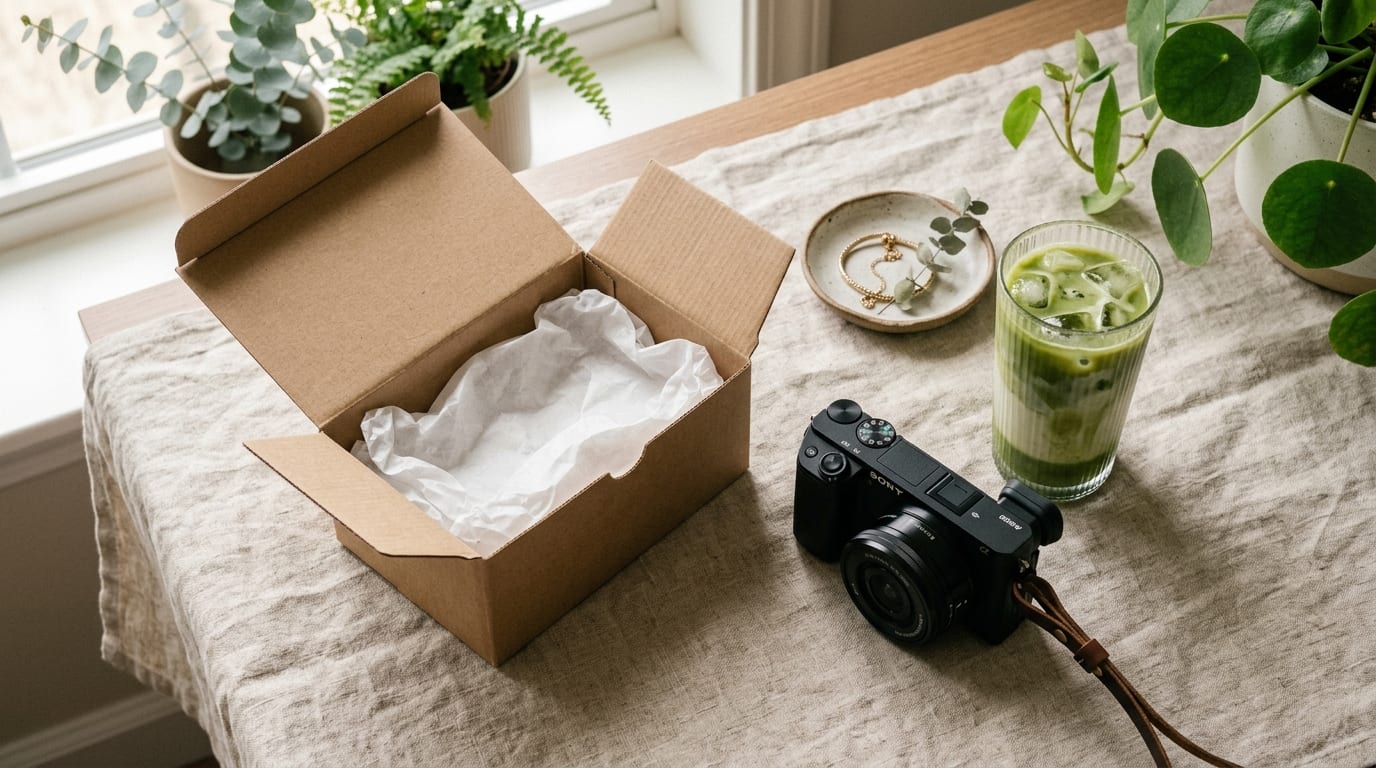
Instead of booking a new studio shoot for every seasonal backdrop, combine your existing clean product photo with a travertine, kitchen, or street-style reference frame.
Generate
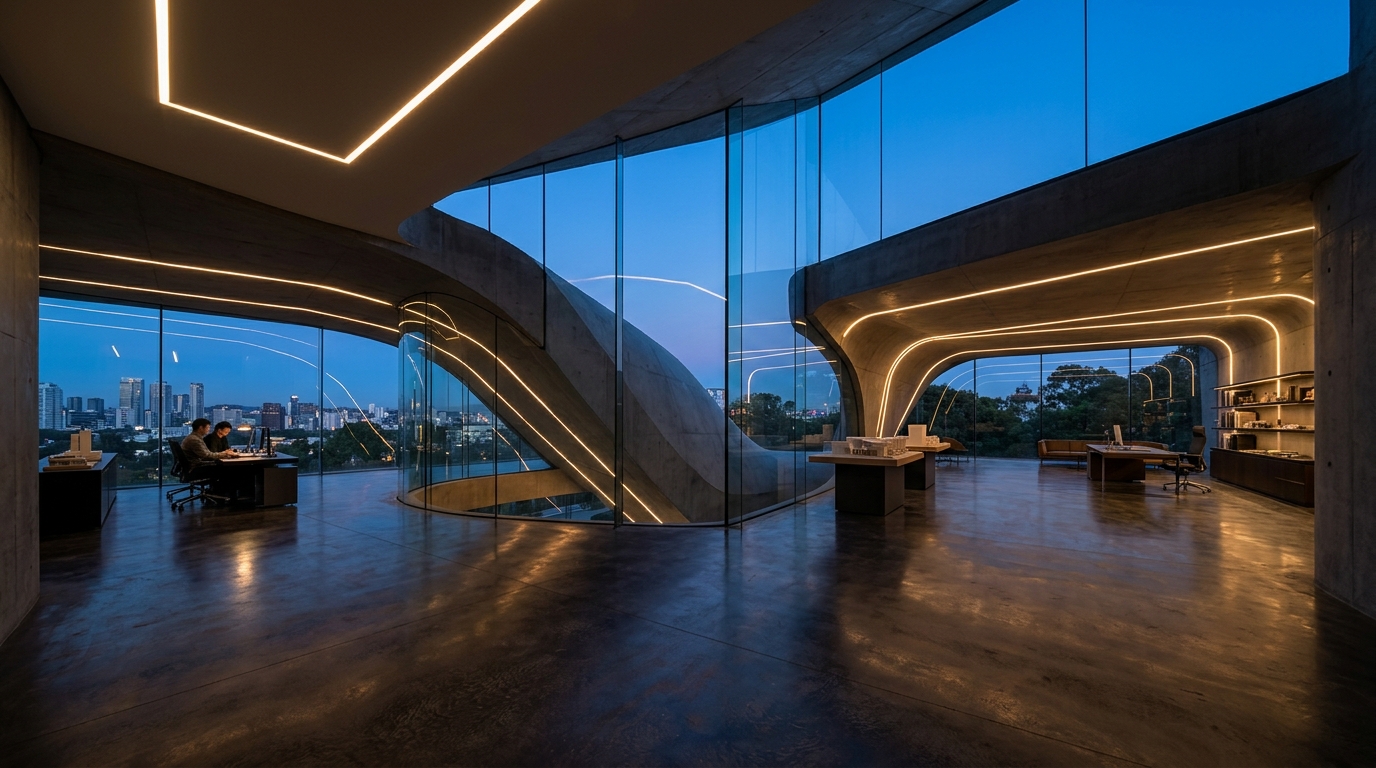
Traditional AI photo merger tools often leave halo outlines or mismatched horizon angles. Agent aligns camera perspective and ambient reflections across both source inputs.
Generate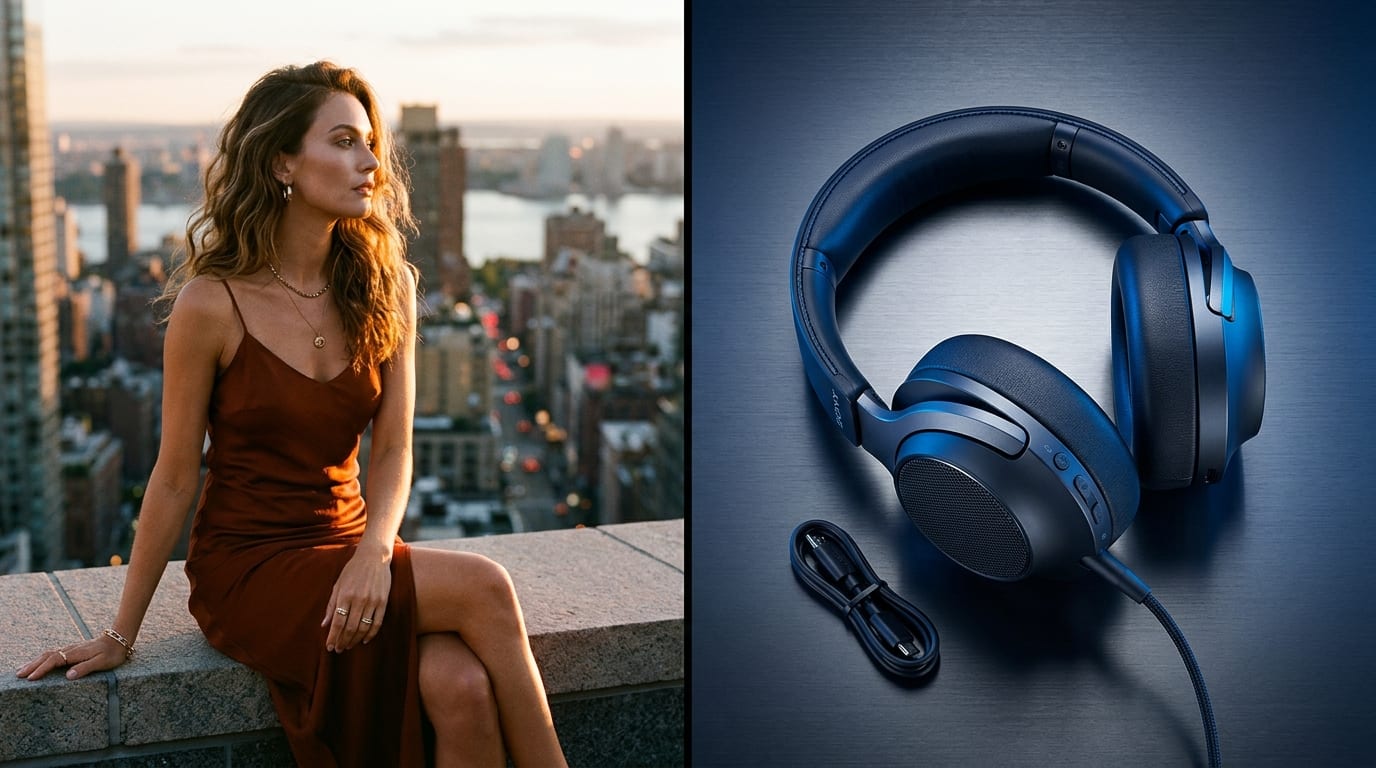
Once your merged image lands in the Agent workspace, ask for tighter 4:5 Instagram crops or animate the finished composite into a short motion clip.
GenerateSimple preparation habits that make AI photo merges look convincingly photographed.
Match Camera Elevation
PerspectivePair subjects and backdrops shot at similar eye-level or tabletop angles for natural ground contact.
Label Roles in the Prompt
ClarityState clearly which uploaded image is the foreground subject and which provides the background or outfit.
Preserve Key Details
FidelityUse Faithful Subject Preservation when merging branded packaging, jewelry, or distinct facial features.
Check Edge Contrast
LightingSpecify warm rim light or soft diffused daylight so hair and glass edges blend cleanly into the scene.
Leave Breathing Room
FramingPick wider scene references if you plan to add headline copy or crop later for 4:5 and 9:16 feeds.
Animate the Winner
MotionOnce two images fuse cleanly, ask Agent to add a subtle camera push-in for Reels or TikTok ads.
Attach both photos using the Reference upload slot, select your fusion scenario and lighting match options, optionally describe how they should interact, and click Generate to run the composite in Agent.
Choose your options above, optionally attach reference media, and send your formatted prompt directly to Viralkey Agent.