Center Eyes in Upper Third
HeadroomLeave clean space above the hair so rectangular ID crops and circular avatar masks never slice the crown.
Transform everyday portraits into standardized company IDs, summit passes, VIP community avatars, and gaming clan crests inside Viralkey Agent. Built as an AI ID badge photo generator, it unifies framing, studio lighting, and clean backdrops across your entire roster. Powered by Viralkey Agent · Explore AI Selfie Generator · YouTube Profile Picture · AI Logo Creator
Describe your badge style, role text, or border details
Remote HR teams, conference hosts, and guild managers often receive casual selfies with cluttered rooms, harsh shadows, and uneven head crops. Choose your badge use case, background color rule, and attire finish below, upload a portrait into the Reference slot, and click Generate so Viralkey Agent delivers a uniform staff badge photo AI layout ready for lanyards or digital rosters. Run tailored briefs inside Viralkey Agent or explore model-based creation in the AI Image Generator · Related workflows: AI Selfie Generator · YouTube Profile Picture · AI Logo Creator
Transform everyday portraits into standardized company IDs, summit passes, VIP community avatars, and gaming clan crests inside Viralkey Agent. Built as an AI ID badge photo generator, it unifies framing, studio lighting, and clean backdrops across your entire roster.
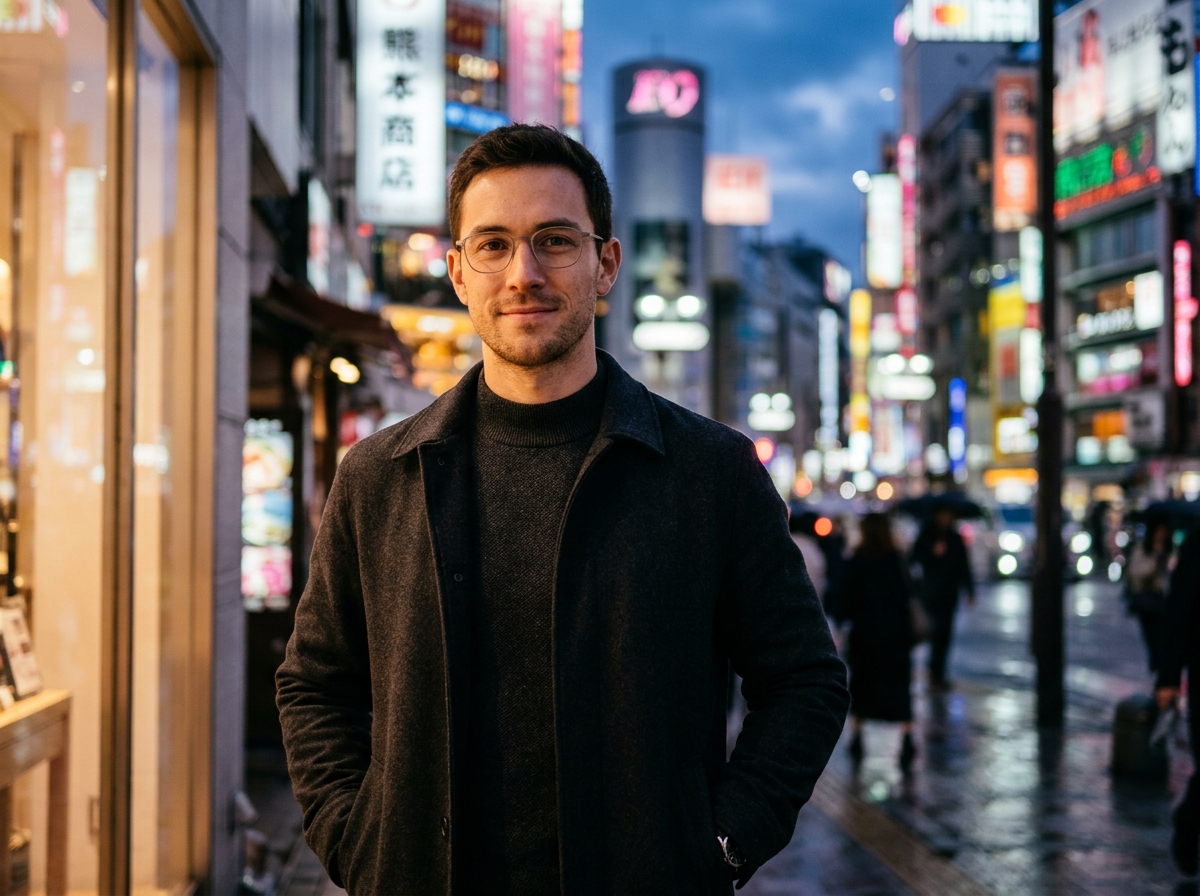
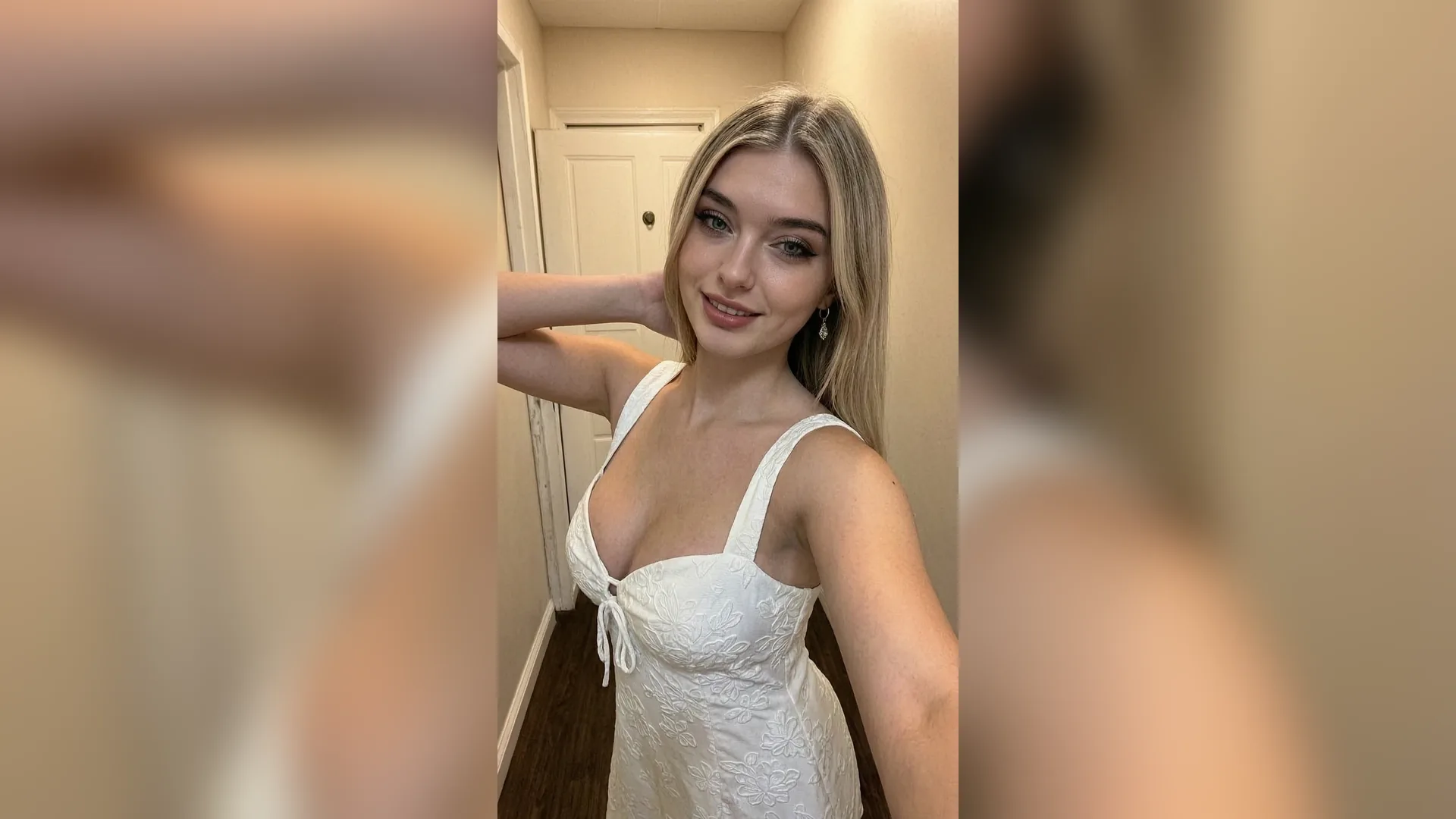
Converts mismatched casual photos into centered, eye-level headshots with balanced key lighting—ideal for any company badge photo maker AI workflow.
Generate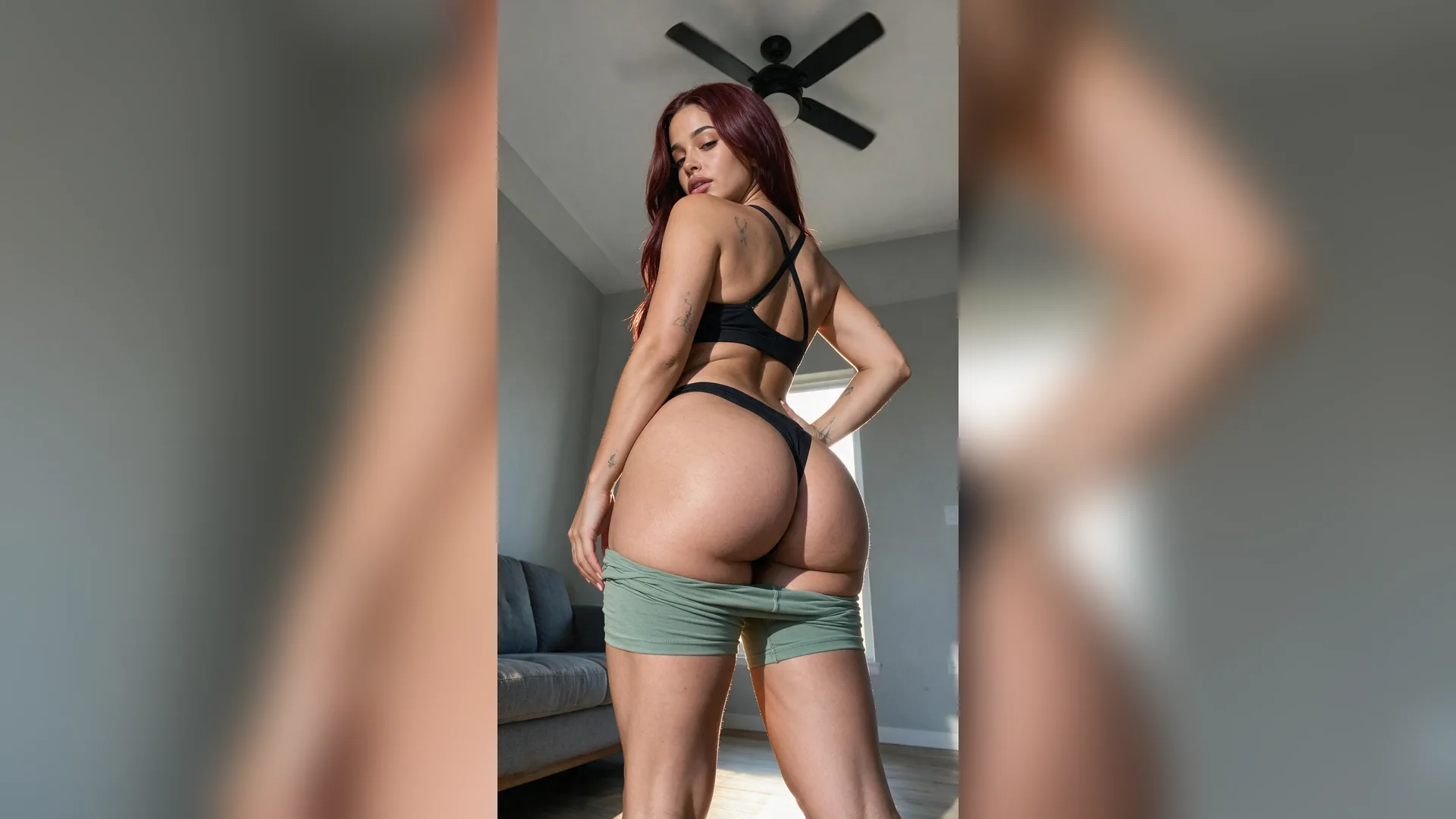
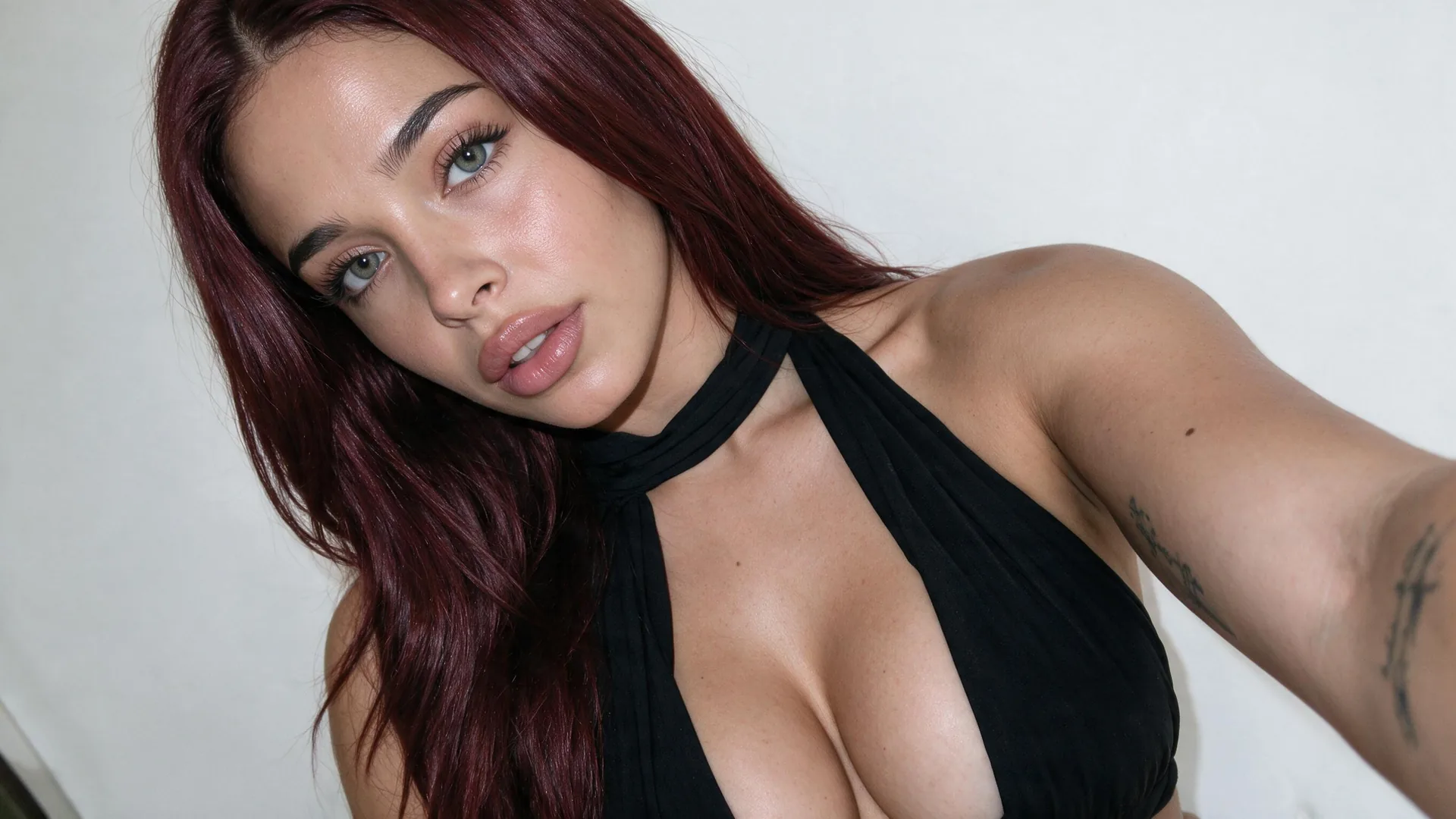
Adapts framing cleanly from vertical lanyard cards to circular badge avatar creator rings, keeping shoulders, faces, and crest borders clear of clipping.
Generate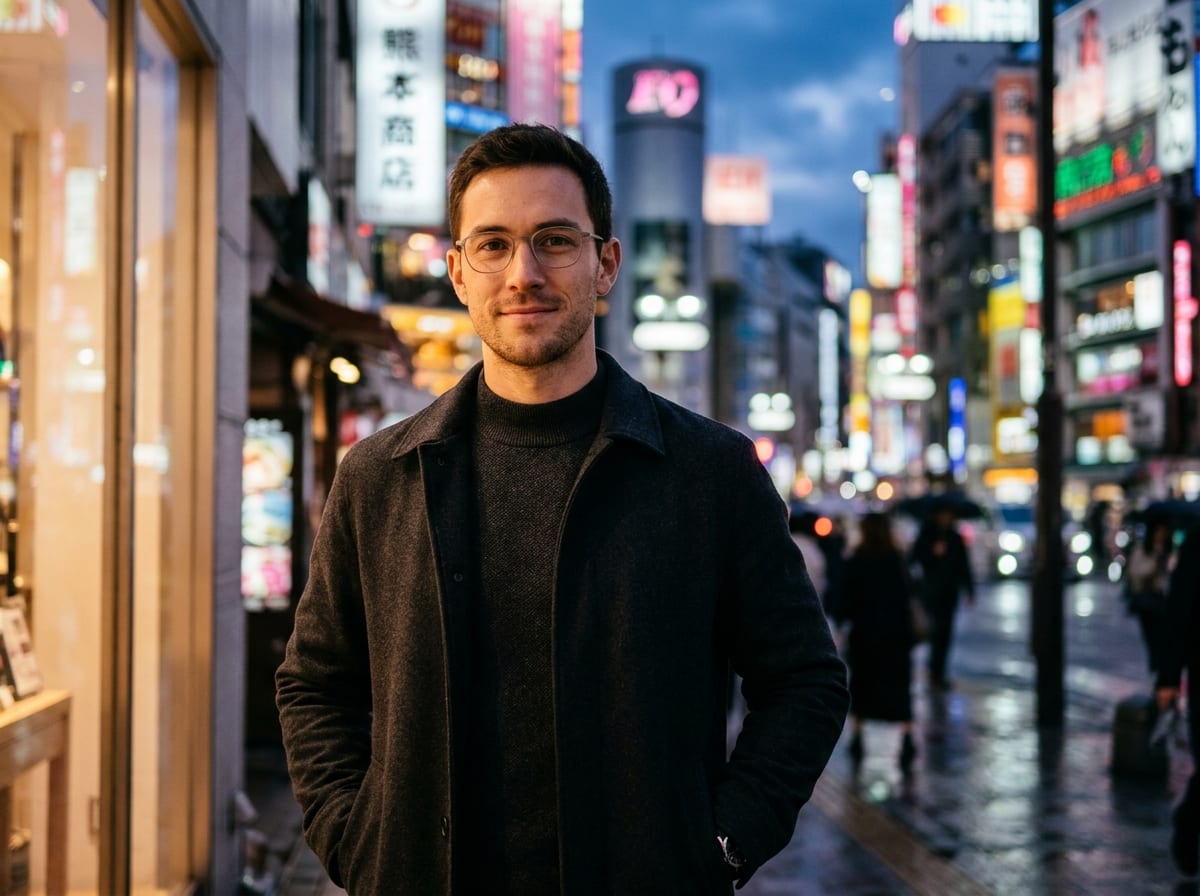
Replaces distracting home or street backgrounds with studio neutral tones, clean lanyard-ready whites, or stylized slate crest rings matched to your attire preset.
GenerateSelect your target badge format, studio backdrop color, and attire styling from the dropdowns, or pick a preset to configure your event badge portrait AI prompt.
Drag and drop or upload a clear front-facing member photo into the Reference slot, then add any lanyard frame, role label, or clan color notes in the text field.
Hit Generate to open Viralkey Agent with your structured specifications, then download the finished badge portrait or refine border colors and crops in chat.
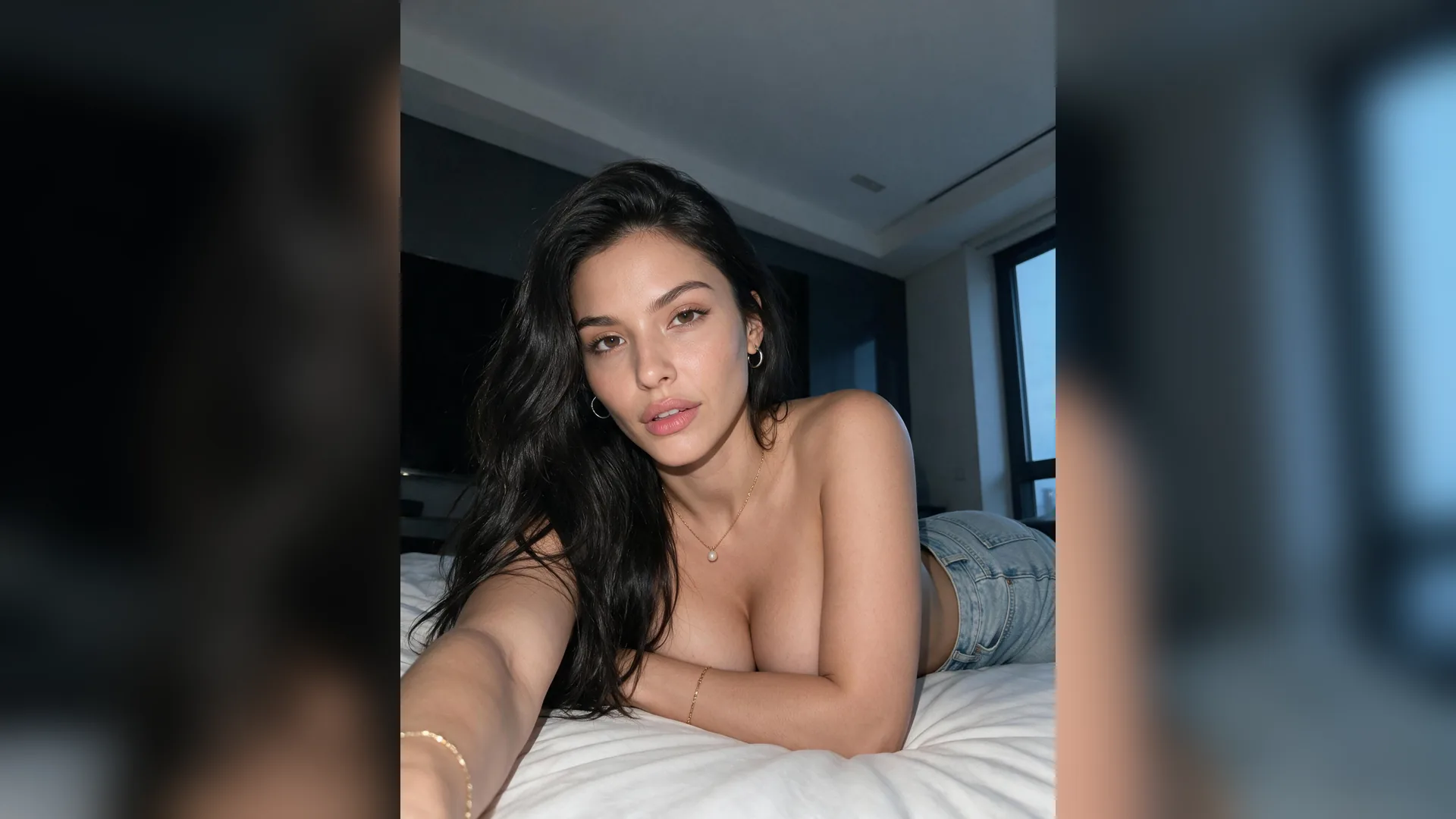
When employees work across time zones, collecting matching headshots for access cards and team directories stalls onboarding. A uniform staff badge photo AI workflow turns phone snapshots into clean corporate IDs in one consistent visual system.
Generate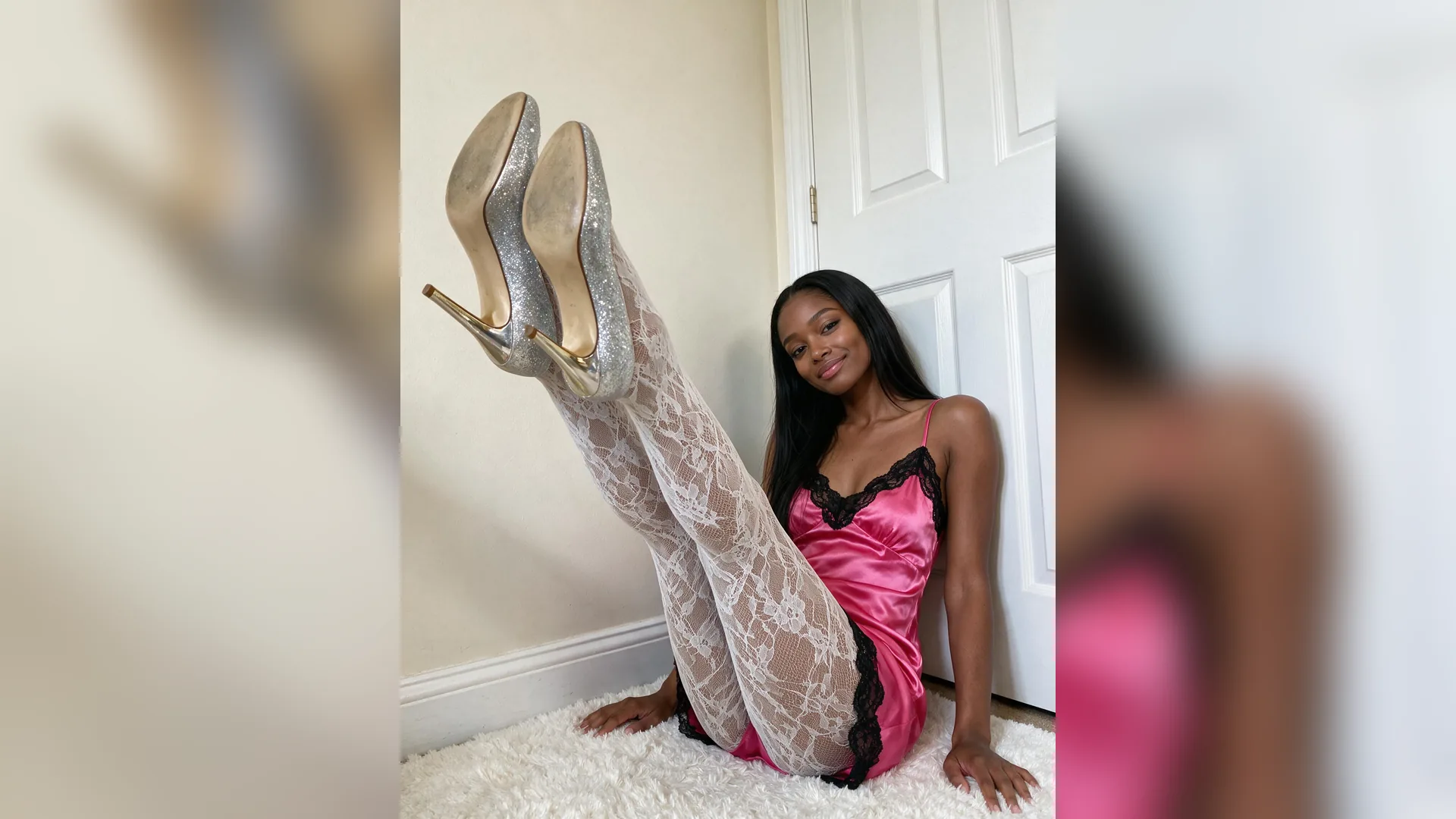
Speakers and attendees rarely send print-ready headshots on the first try. With an event badge portrait AI setup, organizers can standardize lighting, crop ratios, and neutral or branded backdrops before sending passes to print.
Generate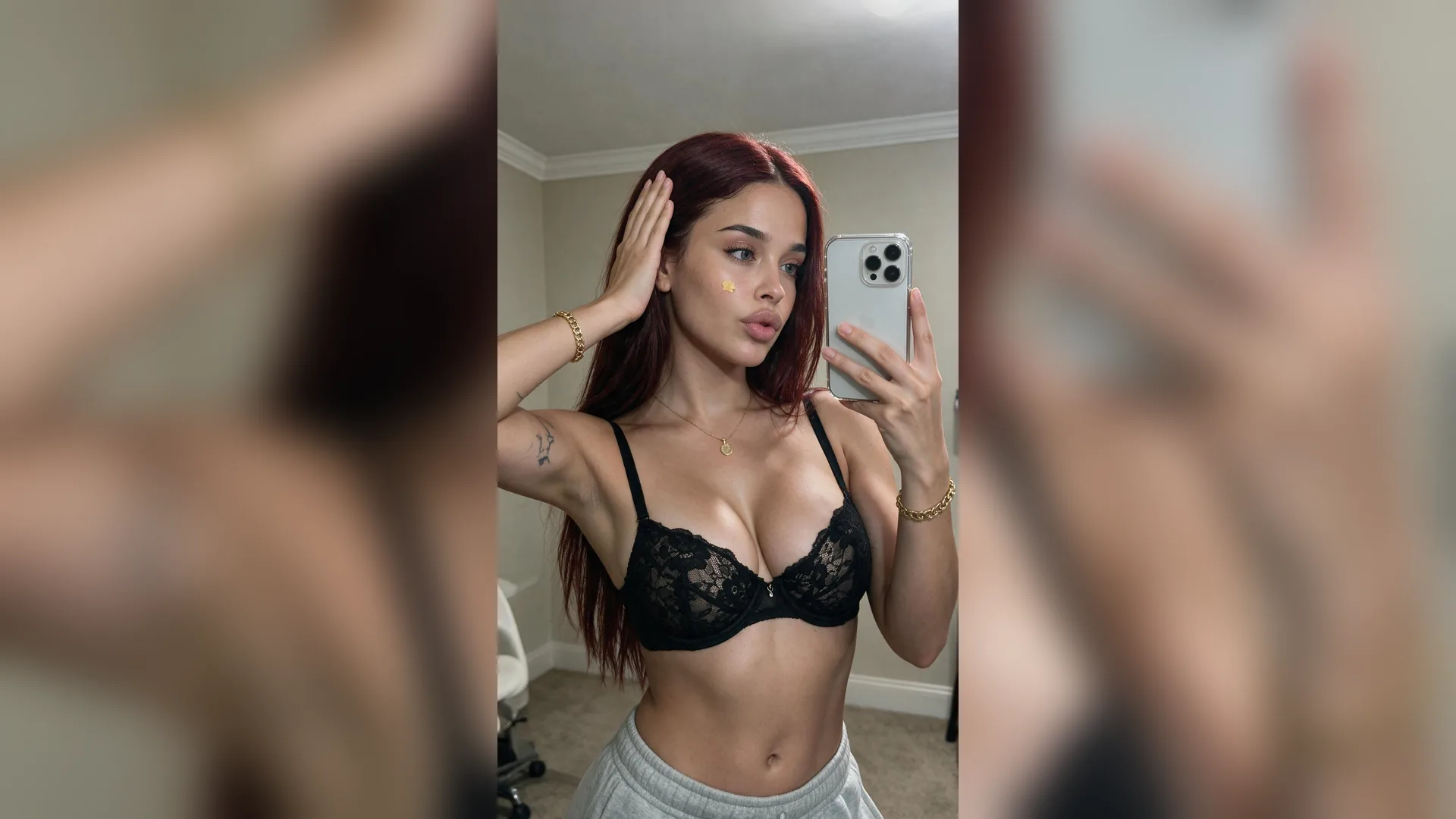
Community moderators and esports captains can turn member portraits or character art into cohesive circular badge avatar creator graphics complete with metallic rings, subtle rim light, and team color accents.
GenerateFollow these framing and lighting standards so every badge portrait prints cleanly and reads clearly at small avatar sizes.
Center Eyes in Upper Third
HeadroomLeave clean space above the hair so rectangular ID crops and circular avatar masks never slice the crown.
Use Front-Facing References
Pose AngleUpload portraits looking straight toward the camera; severe side profiles reduce recognition on small passes.
Match Backdrop to Badge Format
ContrastPick soft light gray or crisp white backdrops for printed PVC badges, or deep slate for dark-mode community rings.
Keep Attire Collar Clean
WardrobeChoose structured blazers, crewnecks, or clean team trim so collar lines frame the neck neatly without visual noise.
Avoid Heavy Sunglasses or Hats
ClarityClear facial features help Viralkey Agent preserve natural likeness across corporate, event, and stylized guild modes.
Reuse One Prompt Template
ConsistencyLock your three dropdown choices and reuse the same prompt notes across every team member for an identical roster look.
Upload each person's portrait into the Reference slot and apply the same badge use case, backdrop color, and attire preset. Viralkey Agent aligns head scale, neutralizes distracting rooms, and applies even studio lighting across every output.
Choose your options above, optionally attach reference media, and send your formatted prompt directly to Viralkey Agent.